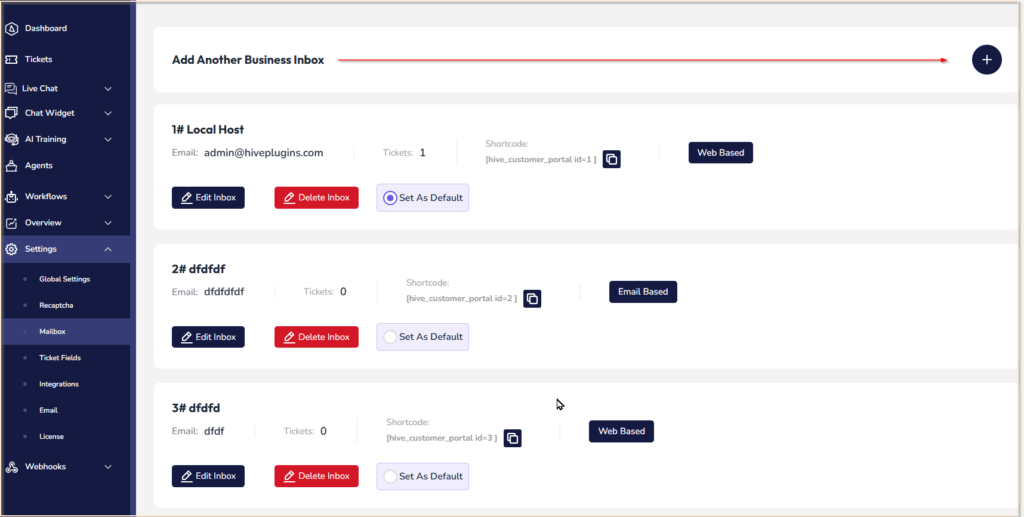
A Business Inbox is a dedicated support channel in Hive Support. Each inbox has its own email address, notification settings, and shortcode for your website. You can create multiple inboxes — for example, one for Sales, one for Technical Support, one for Billing.
Step 1 — Go to Mailbox Settings #
From your WordPress dashboard, go to Hive Support → Settings → Mailbox.
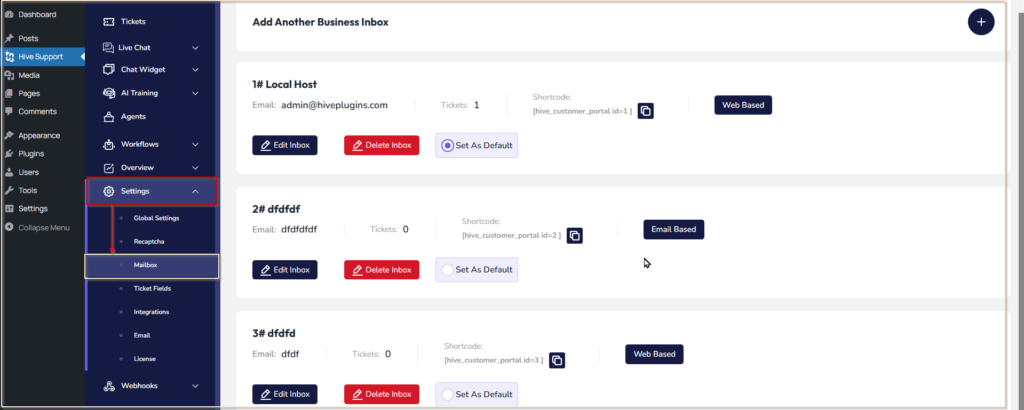
You will see your existing inboxes listed here. Each inbox shows its name, email, ticket count, shortcode, and inbox type (Web Based or Email Based).
Step 2 — Create a New Inbox #
Click the + button in the top right corner to create a new inbox.
Step 3 — Choose Your Inbox Type
#

You have two inbox types:
Web Based: Customers submit tickets through a form on your website. No email configuration needed. This is the simplest option.
Email And Web Based: Customers can submit tickets via your website AND by sending emails directly to your support email address. Emails are automatically converted into tickets. This requires email piping configuration (covered in Step 5).
Step 4 — Fill in Basic Information #
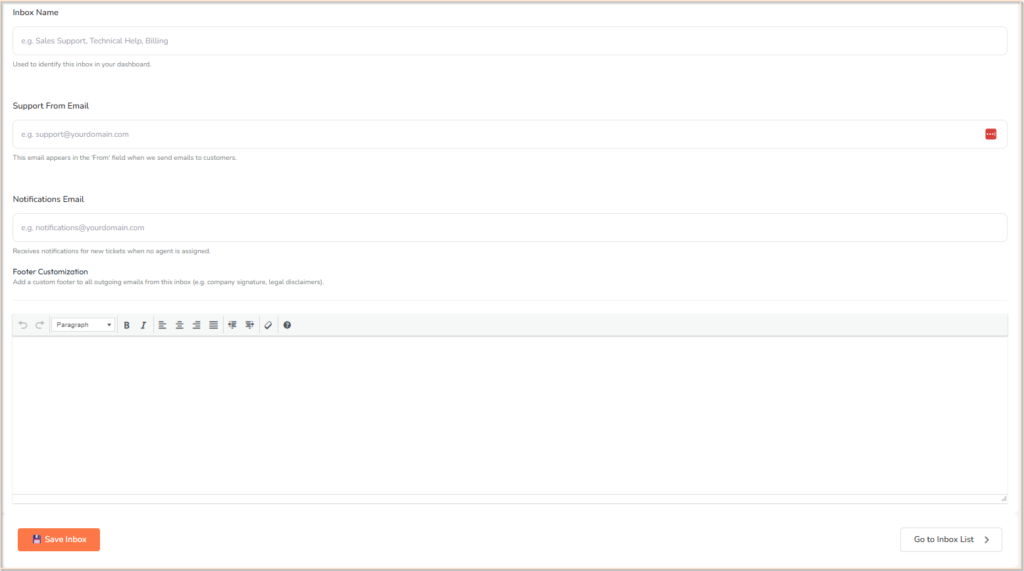
Inbox Name Give your inbox a descriptive name. Examples: “Sales Support”, “Technical Help”, “Billing Queries”. This name appears in your dashboard to identify the inbox.
Support From Email This is the email address that appears in the From field when Hive Support sends emails to your customers. Use a real email address that exists on your mail server — for example [email protected]. If left empty, your WordPress default email is used.
Notifications Email When a ticket is created and has no assigned agent, Hive Support sends a notification to this email address. Use your main support team email or your personal email — for example [email protected]. If left empty, the WordPress admin email is used as a fallback.
Footer Customization (Optional) Add a custom footer that appears at the bottom of your customer-facing ticket portal for this inbox. You can add your company name, legal disclaimers, or contact information here.
Step 5 — Configure Email Piping (Email And Web Based only) #
This section only appears when you select “Email And Web Based” as your Inbox Type.
Email Piping allows incoming emails to automatically create support tickets. When a customer sends an email to your support address, a new ticket is created in Hive Support instantly.
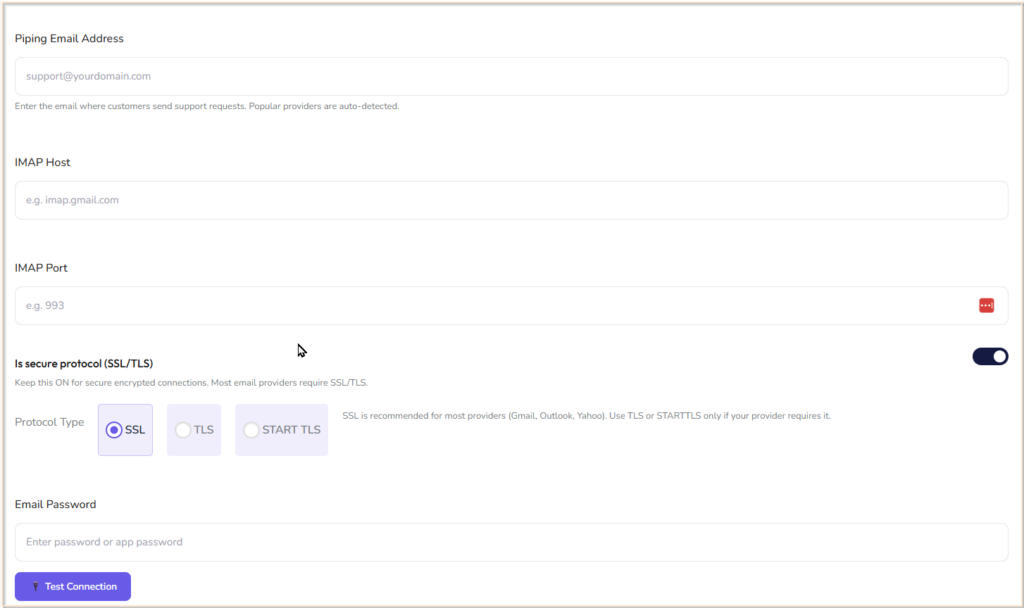
Enable Email Piping Toggle #
Turn this ON to activate email-to-ticket conversion for this inbox. When enabled, Hive Support will check your email inbox regularly and convert new emails into tickets.
Piping Email Address #
Enter the email address where your customers send support emails. This is the email Hive Support will monitor via IMAP.
Important: Use a dedicated email address for support — never your personal email. All emails sent to this address will become support tickets.
Auto-Detection: When you type your email address and move to the next field, Hive Support automatically fills in the correct IMAP Host and Port for popular providers:
| Provider | Auto-Detected Host | Port |
| Gmail | imap.gmail.com | 993 |
| Outlook / Hotmail | imap-mail.outlook.com | 993 |
| Yahoo Mail | imap.mail.yahoo.com | 993 |
| Zoho Mail | imap.zoho.com | 993 |
| iCloud Mail | imap.mail.me.com | 993 |
| AOL Mail | imap.aol.com | 993 |
| Other providers | Enter manually | — |
IMAP Host and Port #
If your provider was auto-detected, these fields are already filled. If you use a custom mail server (e.g. your hosting provider’s email), enter the IMAP host and port manually. Check your hosting control panel or ask your hosting provider for these details.
Secure Protocol (SSL/TLS) #
Keep this ON. Almost all modern email providers require a secure connection. Only turn this off if your hosting provider specifically tells you to.
Protocol Type: If SSL is selected and your connection fails, try switching to TLS or STARTTLS. For Gmail, Outlook, and Yahoo — always use SSL.
Email Password
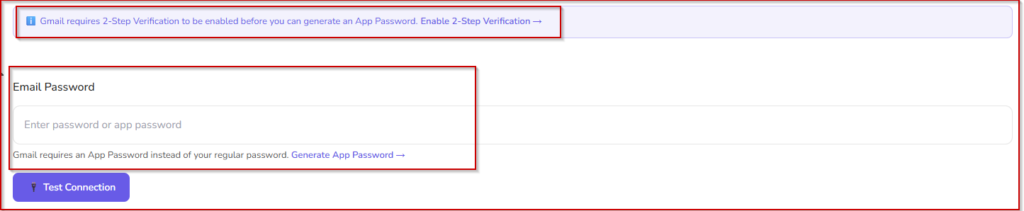
Enter the password for your piping email account. Note that many providers require a special App Password instead of your regular login password — especially if you have two-factor authentication (2FA) enabled.
The plugin shows the correct instructions automatically based on your email provider:
- Gmail — Requires an App Password. Generate one here →
- Outlook — Use your regular Microsoft password. If 2FA is enabled, generate an App Password at Microsoft Security →
- Yahoo — Requires an App Password. Generate one here →
- Zoho — Use your Zoho password or App Password if 2FA is enabled. Zoho Security →
- iCloud — Requires an App-Specific Password. Generate one here →

Before saving, click 🔌 Test Connection to verify your credentials are correct. The plugin will attempt to connect to your email server and report:
- ✅ Connection successful — everything is set up correctly, proceed to save
- ❌ Wrong email or password — double-check your App Password
- ❌ Could not connect to server — check your Host and Port settings
- ❌ SSL connection failed — try changing the Protocol Type
Always test the connection before saving. This saves time and prevents silent failures.
Step 6 — Set Up Real-Time Email Sync (Recommended) #

By default, Hive Support checks your email inbox every 30 minutes using WordPress’s built-in scheduler. This means a customer’s email could take up to 30 minutes to become a ticket.
For instant email-to-ticket conversion, set up a server-side cron job using the command shown at the bottom of the form. Copy the command and add it to your hosting cPanel under Cron Jobs, set to run every 1 minute.
For full instructions, see: Email to Ticket: Setting Up a Cron Job →
Step 7 — Save and Use Your Inbox #
Click 💾 Save Inbox to create your inbox.
After saving, your new inbox appears in the Mailbox list. You will see a shortcode like
Paste this shortcode on any WordPress page to display the customer support portal for this inbox.
Managing Existing Inboxes #
From the Mailbox list, for each inbox you can:
- Edit Inbox — update any settings including email credentials
- Delete Inbox — permanently removes the inbox and its shortcode
- Set As Default — makes this the default inbox for tickets that don’t specify an inbox