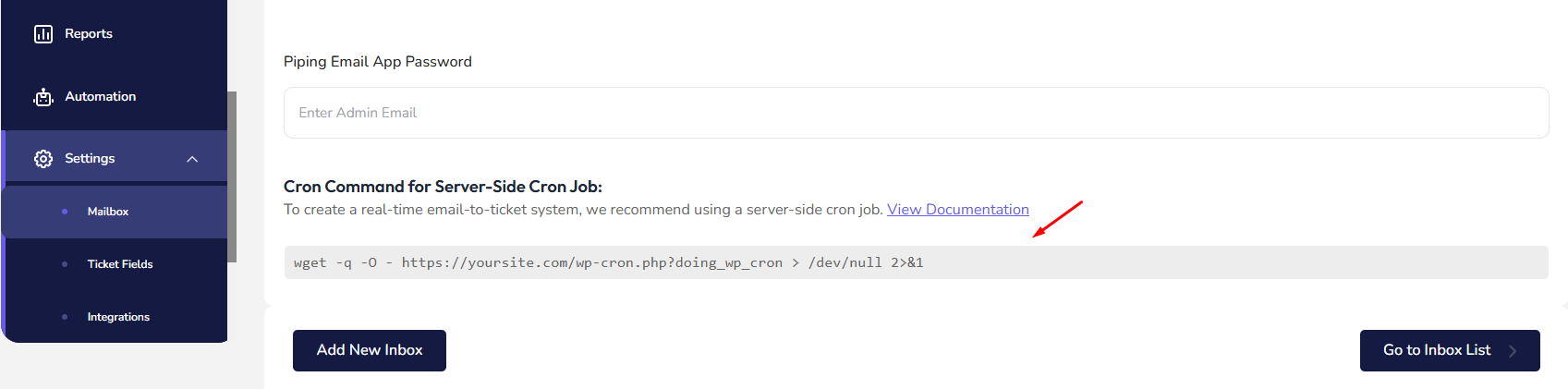
In WordPress, the default system for handling scheduled tasks (known as WP-Cron) can sometimes become inefficient, especially on high-traffic or resource-intensive websites. To overcome these limitations, setting up a server-side cron job is highly recommended. This guide walks you through the process of setting up a cron job to ensure better performance for your WordPress site.
Why Replace WP-Cron with a Server-Side Cron Job? #
WP-Cron relies on site traffic to trigger tasks, which can lead to:
- Missed schedules on low-traffic sites.
- Overloaded servers on high-traffic sites.
- Inconsistent performance for critical scheduled tasks.
By using a server-side cron job, tasks are executed at fixed intervals, ensuring consistency and improving website performance.
Steps to Set Up a Server-Side Cron Job #
1. Disable WP-Cron #
First, disable the default WP-Cron system to prevent conflicts.
- Open your site’s
wp-config.phpfile. - Add the following line before the line
/* That's all, stop editing! */:
define('DISABLE_WP_CRON', true);2. Determine Your Site’s Cron Job URL #
WordPress uses a specific URL to process cron tasks. This URL usually looks like this:
https://yoursite.com/wp-cron.php?doing_wp_cronMake sure to replace https://yoursite.com with your actual site URL.
3. Set Up the Cron Job #
Using cPanel:
- Log in to your hosting control panel.
- Navigate to the Cron Jobs section.
- Under Add New Cron Job, specify:
- Common Settings: Choose the desired frequency (e.g., once every 1 minute).
- Command: Enter the following:
wget -q -O - https://yoursite.com/wp-cron.php?doing_wp_cron > /dev/null 2>&1Save the cron job.
You will get the exact command on the HiveSupport plugin Mailbox settings page