This guide covers how to prepare each email provider for use with Hive Support’s Email Piping feature. Before following these steps, make sure you have created an Email And Web Based inbox in Hive Support (see Mailbox Settings →).
Gmail #
Step 1 — Enable IMAP (Only needed for older accounts)
#
Since April 2026, IMAP is enabled by default on all Gmail accounts. If your account was created after April 2026, skip this step.
For older accounts: Go to Gmail → Settings (gear icon) → See all settings → Forwarding and POP/IMAP → Enable IMAP → Save Changes.
Step 2 — Enable 2-Step Verification #
App Passwords require 2-Step Verification to be active.
- Go to Google Account Security
- Under “How you sign in to Google”, click 2-Step Verification
- Follow the steps to enable it
Step 3 — Generate an App Password #
- Go to https://myaccount.google.com/apppasswords
- Enter an app name (e.g. “Hive Support”)
- Click Create
- Copy the 16-character password shown
Important: Copy the password immediately — Google will not show it again after you close the window.
Use this 16-character App Password in the Email Password field in Hive Support — not your regular Gmail password.
Outlook / Hotmail / Live #
⚠️ Important: Microsoft has been restricting IMAP access for personal Outlook, Hotmail, and Live accounts. If you use
@outlook.com,@hotmail.com, or@live.com, IMAP-based email piping may not work reliably. We recommend using Gmail, Zoho, or your hosting provider’s email for email piping instead.
If you have a Microsoft 365 Business account (work/school email managed by an IT admin), IMAP access is available but must be enabled by your administrator.
If you still want to try with a personal Microsoft account:
- Make sure 2-Step Verification is enabled on your account
- Go to Microsoft Account Security
- Click Advanced Security Options
- Scroll down to App Passwords section
- Click Create a new App Password
- Copy the generated password and use it in Hive Support
IMAP Settings for Outlook:
- Host:
imap-mail.outlook.com - Port:
993 - Protocol: SSL
Note: Even with correct settings, Microsoft may block the connection. If Test Connection fails with an authentication error, switch to Gmail or another provider.
Yahoo Mail #
Step 1 — Generate an App Password #
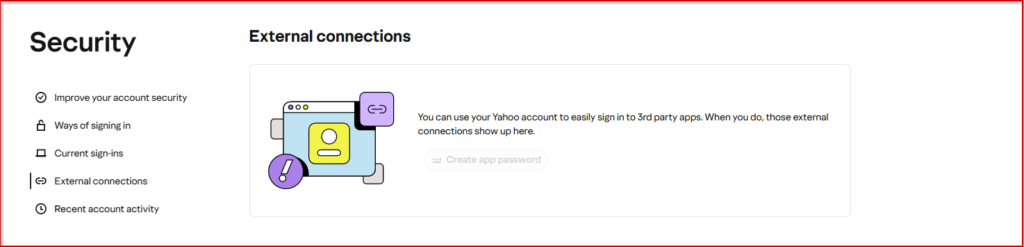
- Go to Yahoo Account Security
- Click Generate App Password
- Select Other App from the dropdown
- Enter “Hive Support” and click Generate
- Copy the password
IMAP Settings for Yahoo:
- Host:
imap.mail.yahoo.com - Port:
993 - Protocol: SSL
Zoho Mail #
Step 1 — Get your password #
If you don’t have 2FA enabled, use your regular Zoho password.
If 2FA is enabled:
- Go to Zoho Security Settings
- Under App Passwords, generate a new one for Hive Support
IMAP Settings for Zoho:
- Host:
imap.zoho.com - Port:
993 - Protocol: SSL
iCloud Mail #
Step 1 — Generate an App-Specific Password #
iCloud always requires an App-Specific Password regardless of 2FA status.
- Go to Apple ID
- Under Security, click Generate Password under App-Specific Passwords
- Enter “Hive Support” as the label
- Copy the generated password
IMAP Settings for iCloud:
- Host:
imap.mail.me.com - Port:
993 - Protocol: SSL
Custom / Other Email Providers #
If your email provider is not listed above, check your hosting control panel or contact your hosting provider for your IMAP settings. You will need:
- IMAP Host — usually something like
mail.yourdomain.com - Port — usually
993(SSL) or143(non-SSL) - Protocol — SSL recommended
- Email — your full email address
- Password — your email account password
Most cPanel hosting providers use:
- Host:
mail.yourdomain.com - Port:
993 - Protocol: SSL
Final Step — Test Your Connection #
After entering all settings in Hive Support, always click 🔌 Test Connection before saving. This confirms your credentials are correct and the connection works.