Table of Contents
Step 1: Enable IMAP in Gmail #
- Sign in to your Gmail account via a web browser.
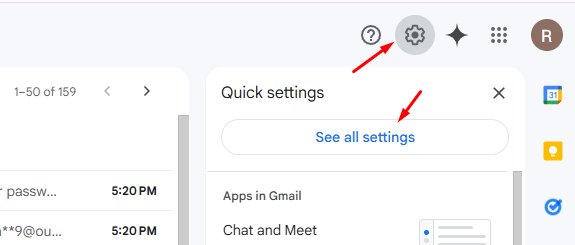
- Click the gear icon in the top-right corner and select “See all settings.”
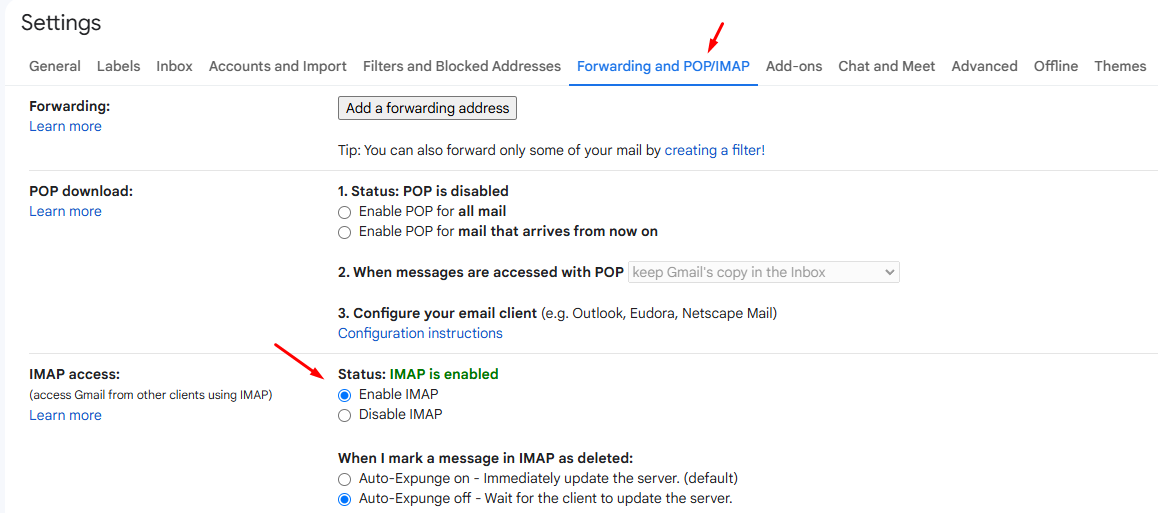
- Go to the “Forwarding and POP/IMAP” tab.
- In the IMAP access section:
- Select “Enable IMAP.”
- Optionally, configure your preferences for IMAP folders and auto-expunge.
- Scroll down and click “Save Changes.”
Step 2: Configure Your Email Client #
You’ll need the following IMAP settings to connect Gmail to your email client.
Incoming Mail (IMAP) Settings: #
- IMAP Server:
imap.gmail.com - Port:
993 - Encryption: SSL/TLS
- Authentication: Your full Gmail email address and password (or app password if 2FA is enabled).
Step 3: Adjust Gmail Settings for App Access #
- Use an App Password (for 2FA enabled accounts):
- Go to your Google Account Security Settings.
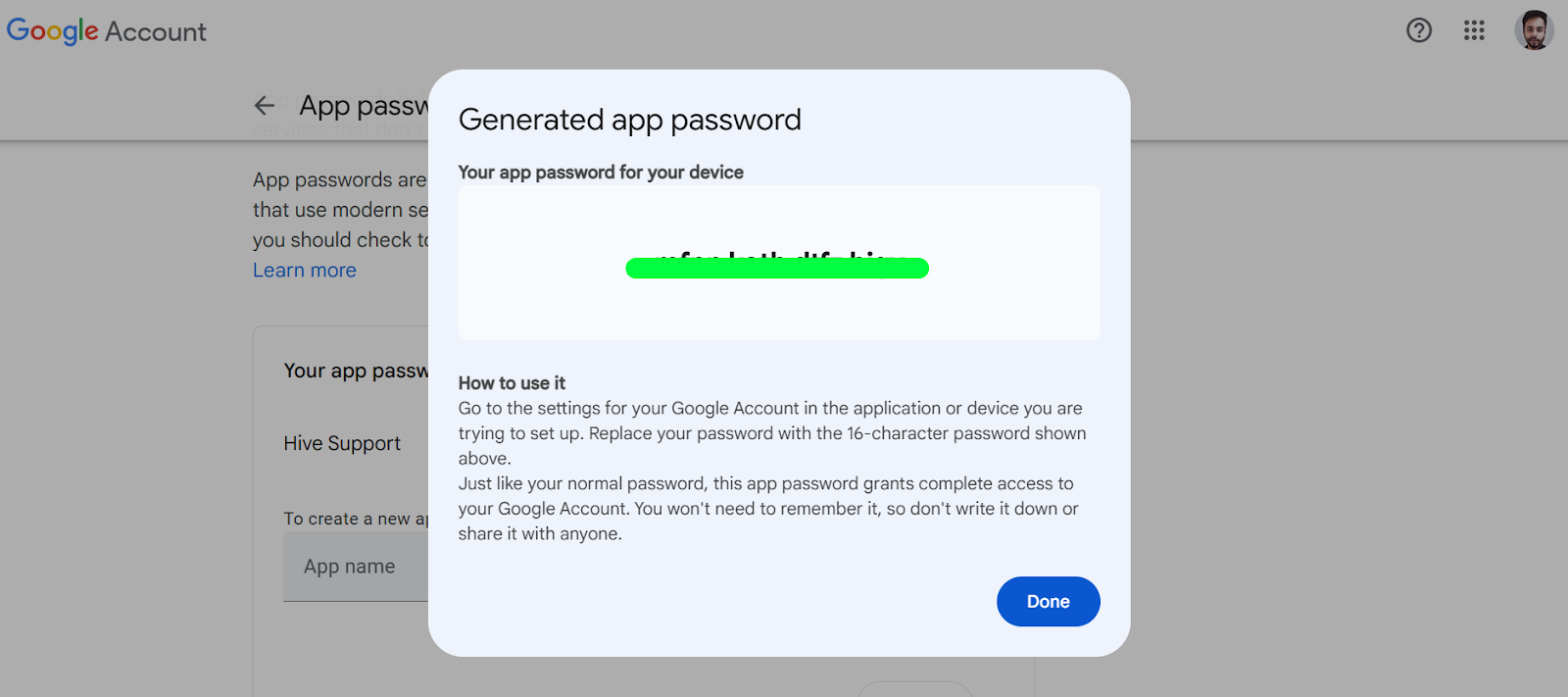
- Generate an App Password under the “App Passwords” section.
- Use this password instead of your regular Gmail password in the email client.
Follow the screenshot to get information visually
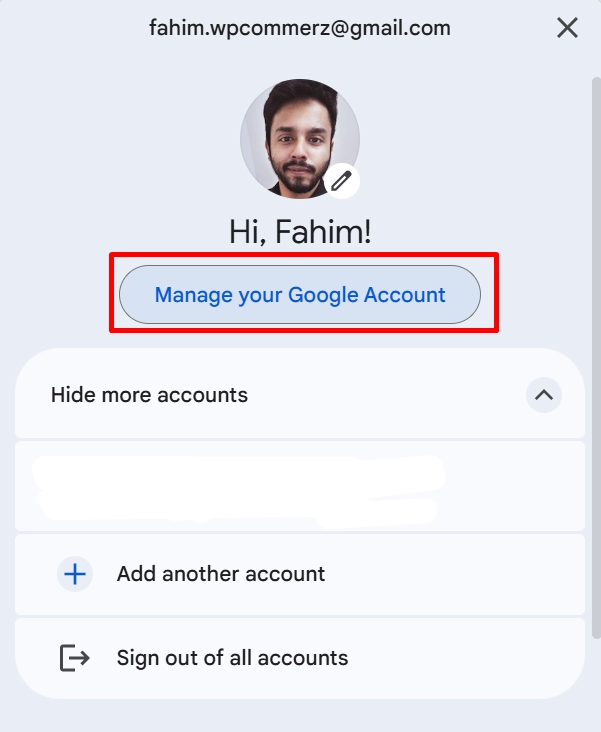
Now navigate to the security settings. You will see a two-step verification function.
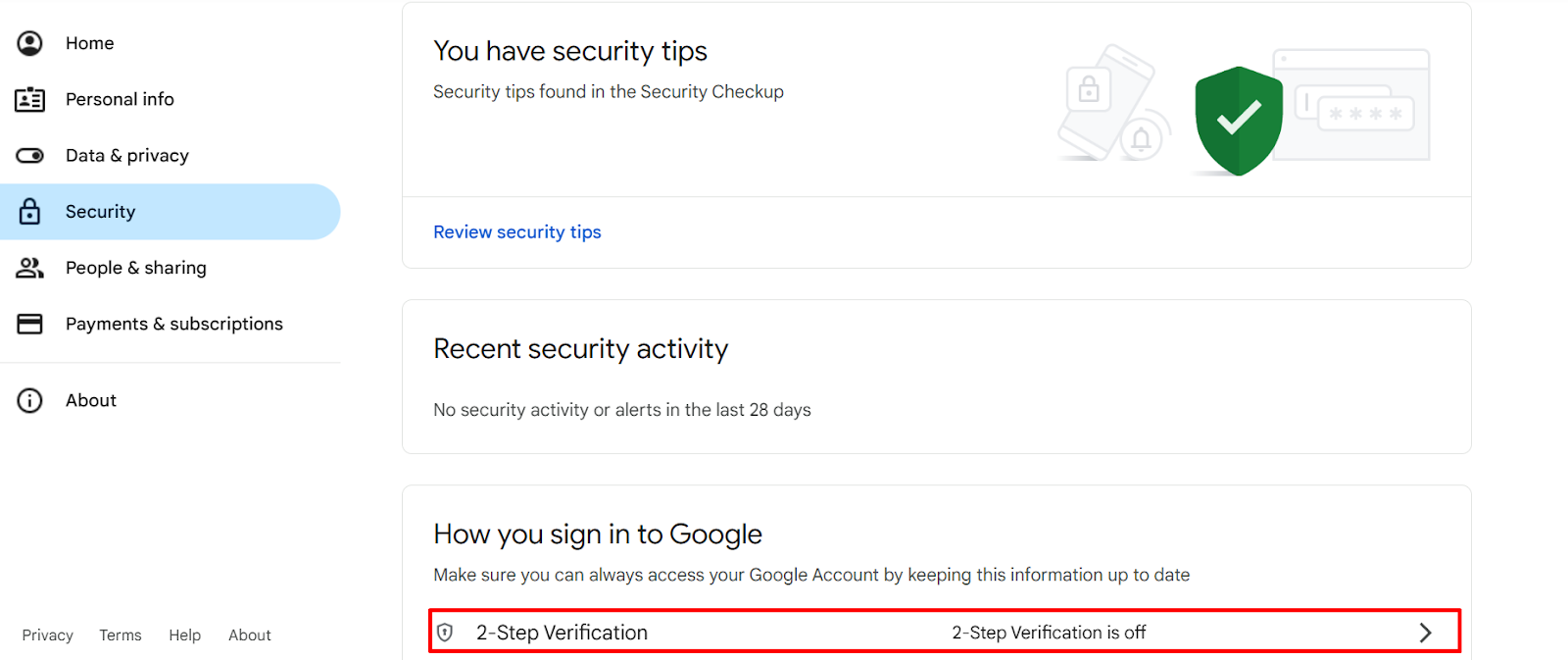
Tap to the 2-Step Verification menu.
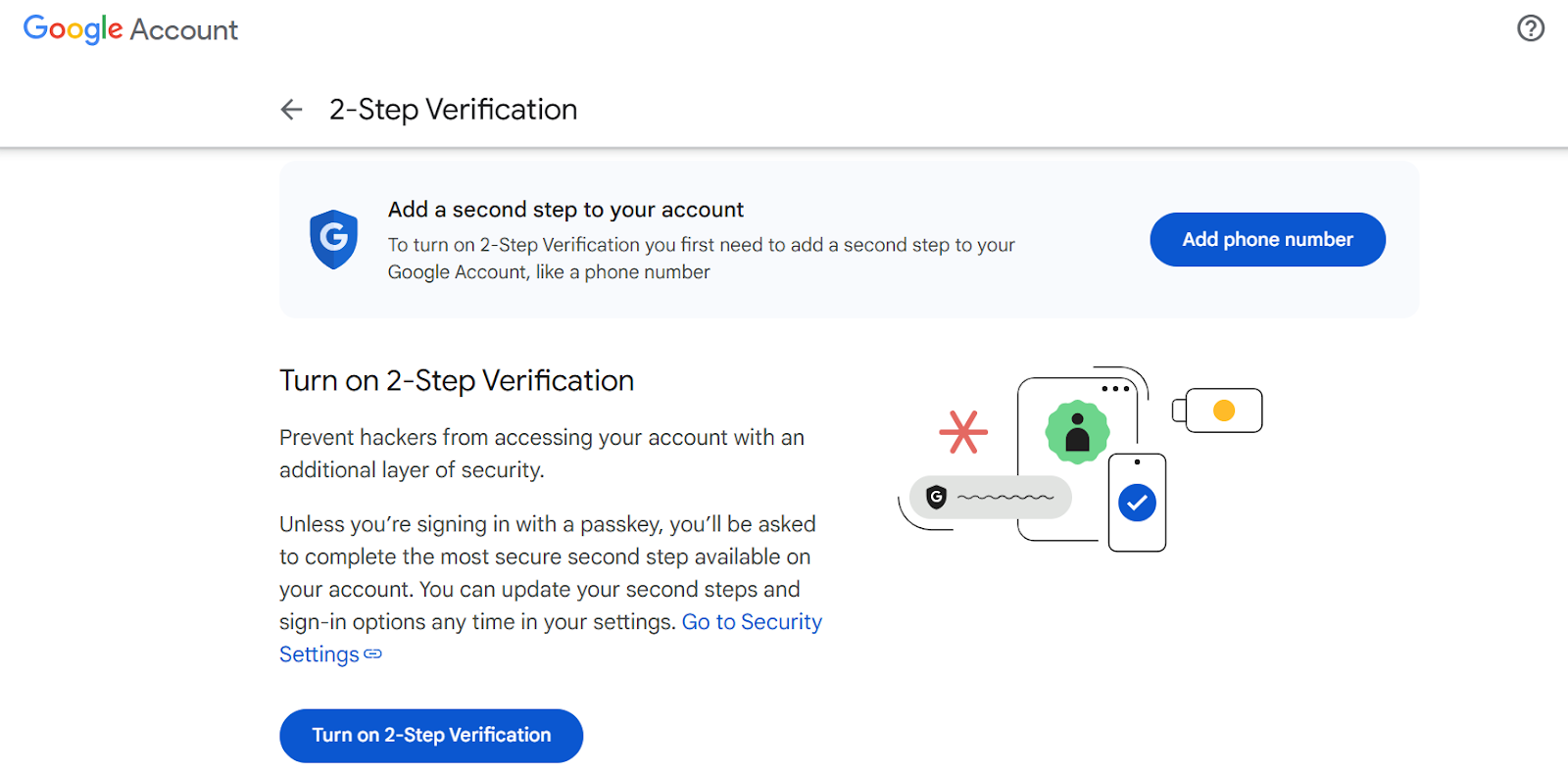
Click on the Turn on 2-Step Verification menu.
Well, the two-step verification is enabled. Now Go to this link to get the App Password for this email – https://myaccount.google.com/apppasswords
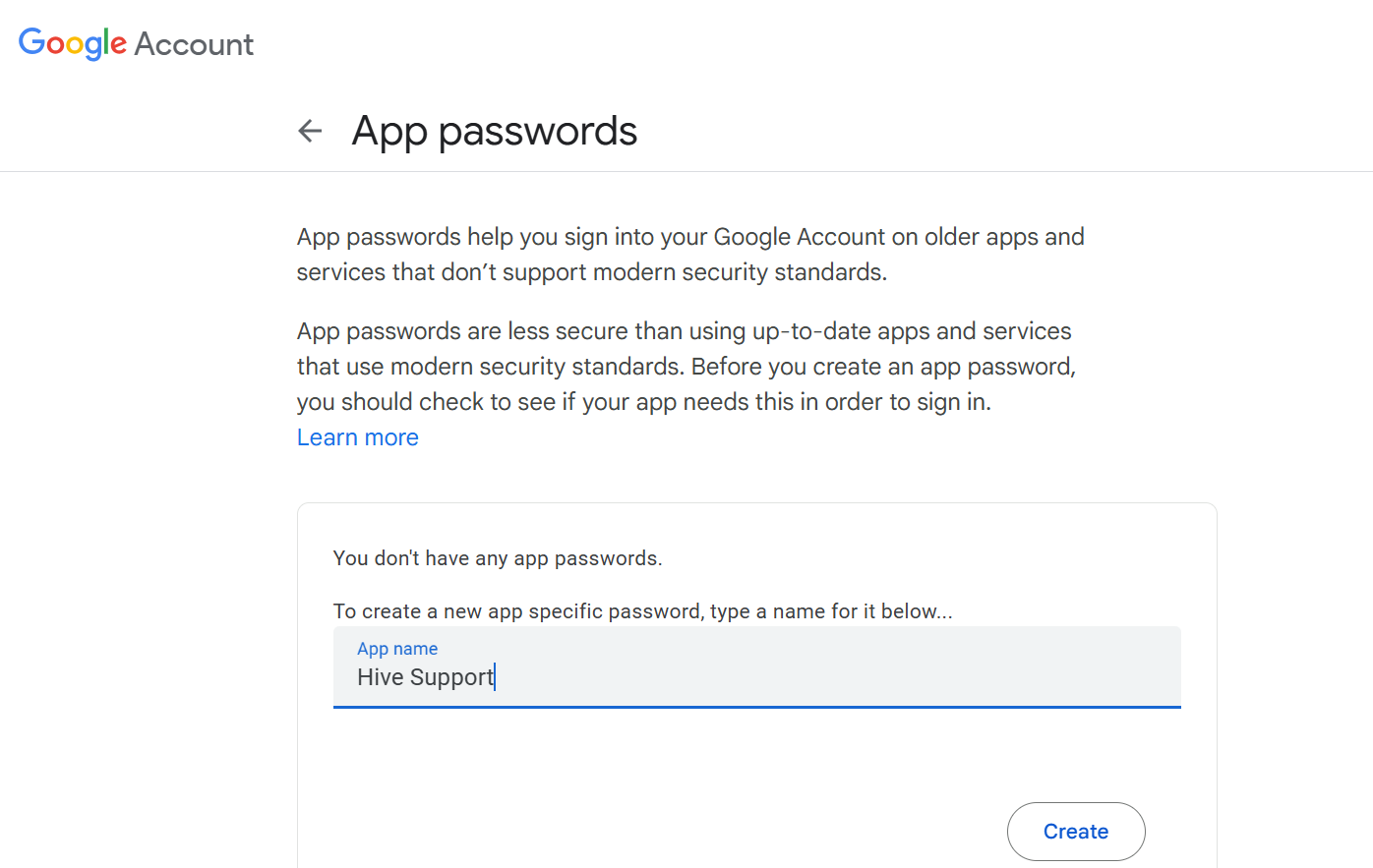
Provide an App name and click on the Create button. Copy the App Password from here for further process of setting up the Email-based mailbox system.