Introduction
The Customer Portal in Hive Support allows your customers to submit and manage their support tickets efficiently. After the latest update, setting up the portal has become easier with two different methods:
- Using the Setup Wizard (recommended for new users)
- Using the Global Settings Page (for existing users who skipped the wizard)
This guide will walk you through both methods to help you get your customer portal up and running quickly.
Method 1: Using the Setup Wizard (Recommended for New Users)
If you are installing Hive Support for the first time or have updated to the latest version, you will see the Welcome Setup Wizard when you activate the plugin.

Step-by-Step Guide:
The Setup Wizard includes three steps for an easy configuration process:
Step 1: Support Portal Configuration
In this step, you need to provide basic business details and set up your customer support portal.
- Business Name: Enter your business or brand name. This will be used in support responses and email notifications.
- Business Email: Provide the email address for customer support communications and notifications.
- Support Portal Page for Customers: Select an existing page from the dropdown to assign it as the customer portal. OR select “Create a page automatically with the shortcode” to generate a new support page. If you choose to create a new page, enter a Support Page Name, and the system will generate a support page automatically.
After filling in the details, click Next to continue.
Step 2: OpenAI Integration
If you want to use AI features, configure OpenAI settings here.
- OpenAI Model: Choose the AI model you want to use for automated responses.
- OpenAI API Key: Enter your API key to enable AI-powered responses in Hive Support.
Click Next to proceed to the final step.
Step 3: Finish Setup
This is the final step of the setup process. Click Finish and Go to Dashboard to complete the setup. You will be redirected to the Hive Support Dashboard, where you can start managing customer support tickets.
Method 2: Using the Global Settings Page (For Existing Users)
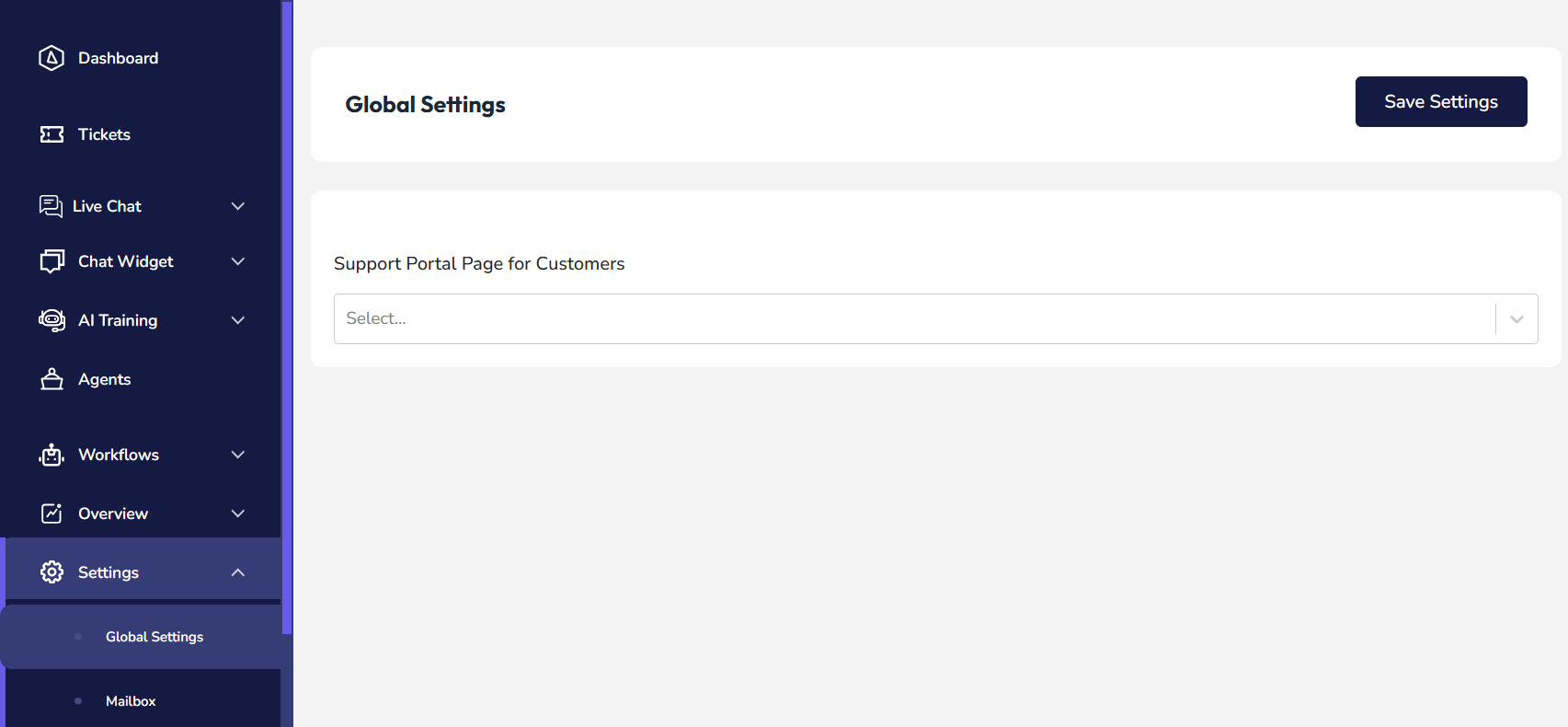
If you skipped the setup wizard or want to change the customer portal page later, you can do so from the Global Settings Page.
Step-by-Step Guide:
- Go to Settings>Global Settings: In your WordPress dashboard, navigate to Hive Support > Settings> Global Settings
- Select a Customer Portal Page: Locate the option “Support Portal Page for Customers”.
- Choose an existing page from the dropdown menu.
- When you select a page, Hive Support will automatically apply the shortcode needed to display the support portal.
- Click Save Changes to apply the settings.
Troubleshooting & FAQs
My customer portal page is blank. What should I do?
Ensure you have selected a page in Global Settings > Select a Page for Customer Portal. If using a custom page, manually add the shortcode: [hivesupport_customer_portal]
Clear your website cache and refresh the page.
How can I change the customer portal page later?
Simply go to Hive Support > Settings>Global Settings and select a different page.
I want to use a custom-designed page. Will it work?
Yes! You can design a custom page and manually insert the [hivesupport_customer_portal] shortcode wherever you want the portal to appear.